Most guides to translating a WordPress plugin start with a file: download a .pot or .po file, edit it in a special program, compile a .mo file and upload it again. It works, but it is slow, and it is hard to see where a text will appear. There is a shorter way: translate the text on the page where you see it.
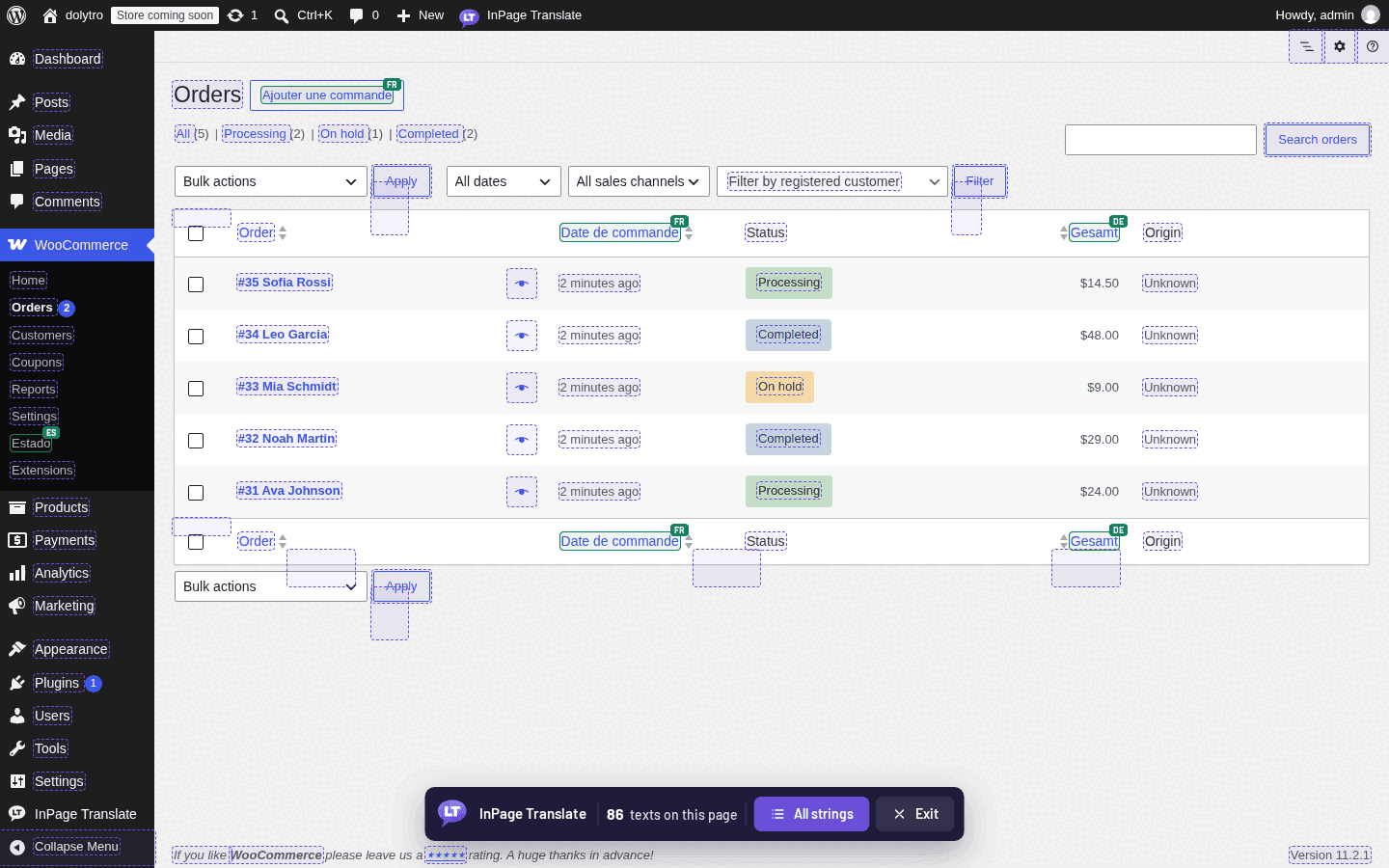
Two ways to translate a WordPress plugin
A plugin or theme keeps its texts in language files. You can change them in two ways.
- Edit the language files. Tools such as Loco Translate and Poedit work on
.poand.mofiles. This is a good fit when you want to ship a complete language file for a plugin, or hand the file to a translator. - Translate on the page. InPage Translate marks every translatable text on the screen you are looking at. You click a text, type the translation and save. The translation is kept in your database, so there is no file to edit, upload or update.
The rest of this guide shows the second way with WooCommerce, but the steps are the same for any plugin or theme whose texts go through the WordPress translation functions, which is nearly all of them.
Step by step: translate a WooCommerce button on the page
- Install and activate the plugin. Upload the zip under Plugins, Add New Plugin, then click Activate. See install and activate.
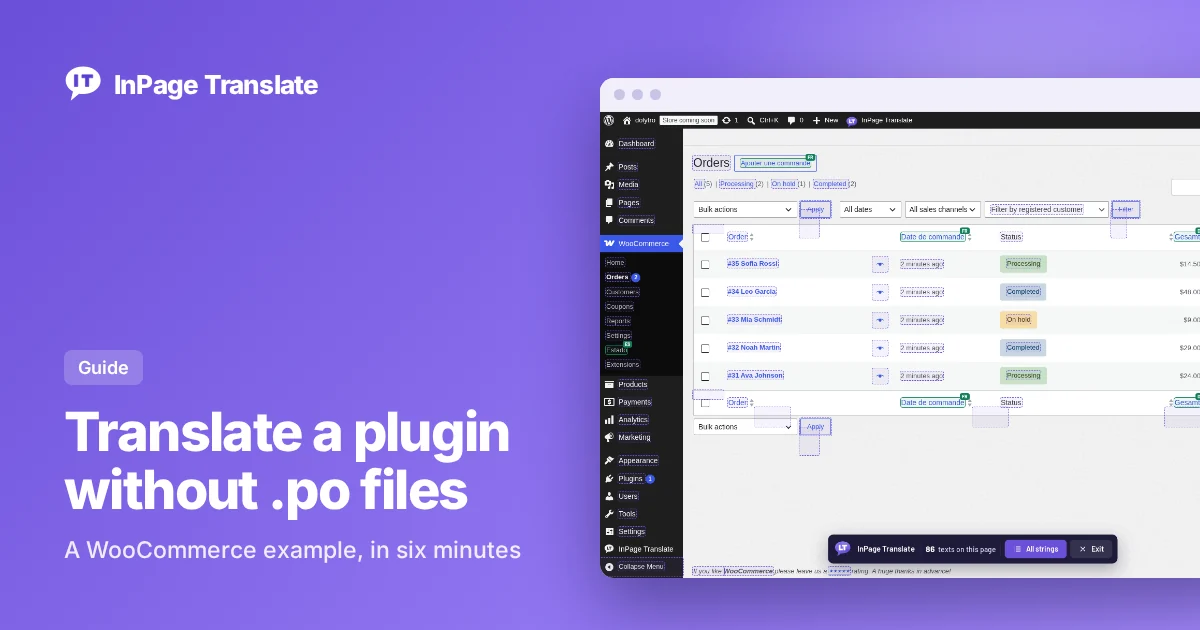
- Open the screen you want to change. In a shop, that may be the WooCommerce Settings page, the Orders list or a product page on your site.
- Click InPage Translate in the toolbar. The page reloads once and every text that can be translated gets a dashed outline.
- Click the text you want. Say
Add to cart. A small editor opens next to it. - Choose a language and type. Pick French and type
Ajouter au panier. - Press Save. The button changes on the page at once, and stays changed after a plugin update.
A page can hold more than one language. Translate each text into the language you want, one at a time.
Translate plugin strings in more than one language on one page
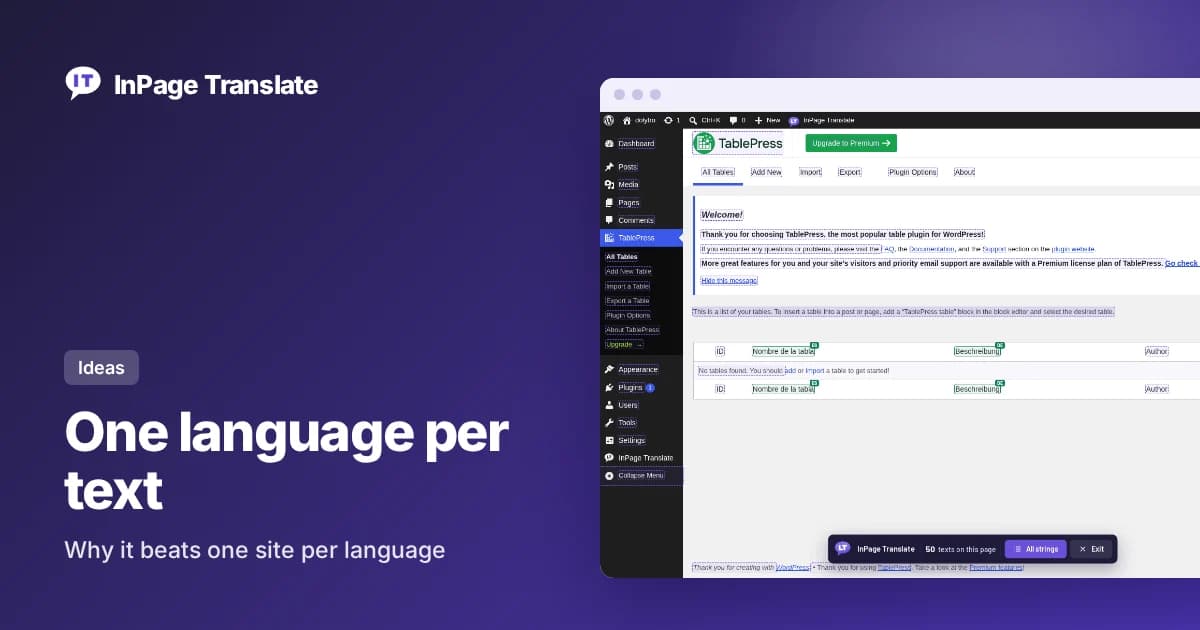
Because each text keeps its own language, you can translate a heading into Spanish and a button into French on the same screen. Visitors see the mixed view by default, or you can offer a language switcher with a shortcode. Read more in one language per text.
Let a free service write the first draft
Press Generate instead of typing. InPage Translate asks the services you have set up, from Google Cloud Translation, DeepL and Microsoft Translator with your own key, to the free MyMemory and Google Translate web endpoint. The draft stays marked "needs review" until a person approves it, and nothing is sent anywhere until you agree to it once. See how Generate works.
Keep placeholders such as %s and %d safe
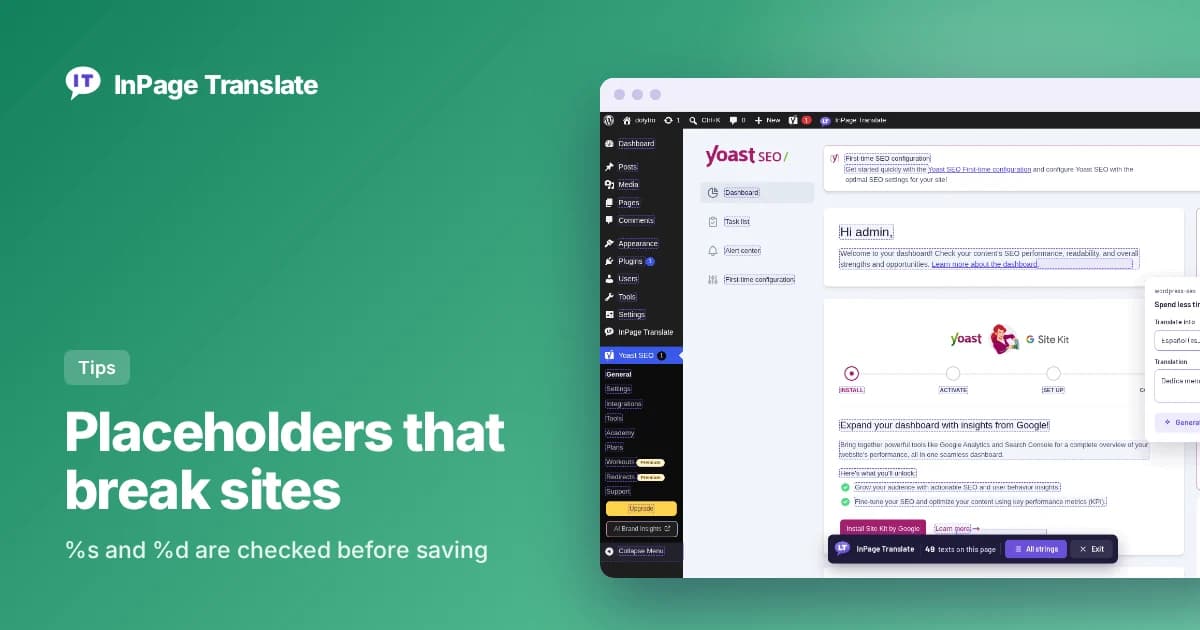
Some texts hold placeholders such as %s or %d. A translation that adds one the original does not have would break the page, so InPage Translate refuses to save it, and warns you when one is missing.
InPage Translate vs Loco Translate, WPML and TranslatePress
These tools overlap, but they are built for different jobs. Here is a fair way to choose.
- Choose InPage Translate to change the words that plugins and themes show, quickly, without touching files, and to see each change on the page.
- Choose Loco Translate to edit and ship
.poand.molanguage files. - Choose WPML or TranslatePress to translate your own posts, pages and menus, with a language switcher and translated URLs. InPage Translate does not translate posts, pages or menus, by design.
Because they do different jobs, you can run InPage Translate next to any of them. See the full feature comparison.
- You can translate a WordPress plugin on the page, with no .po or .mo file.
- Each text keeps its own language, so one page can mix languages.
- Machine drafts stay "needs review" until approved.
- Placeholders such as %s and %d are checked before saving.
- For posts, pages and menus, use WPML or TranslatePress next to it.
Frequently asked questions
Can I translate a WordPress plugin without a .po file?
Yes. With InPage Translate you click a text on the page and save the translation. It is stored in your database and applied as the page is built.
Will my translations survive a plugin update?
Yes. They live in your database, not in the plugin folder, so an update does not overwrite them.
Is this a Loco Translate alternative?
For translating plugin and theme text, yes, and the two can also run side by side. Loco Translate edits language files; InPage Translate edits the text on the page.
Does it translate WooCommerce?
Yes, the texts of WooCommerce and its extensions, in the admin and on your shop, as long as they use WordPress translation functions. Product titles and descriptions are content in the database, so they are not covered.
Where to go next
Read the full guide to translating any plugin page, or install the plugin and try it on your own site.