Install and activate
Upload the InPage Translate plugin, activate it, and find the toolbar item and the admin menu. Requirements and what gets added to your site.
Requirements
| Item | Needed |
|---|---|
| WordPress | 6.2 or newer |
| PHP | 7.4 or newer |
| Account | An administrator for the first set up |
Install the plugin
- 1Get the file.
Download the plugin from the download section of this site.
- 2Upload it.
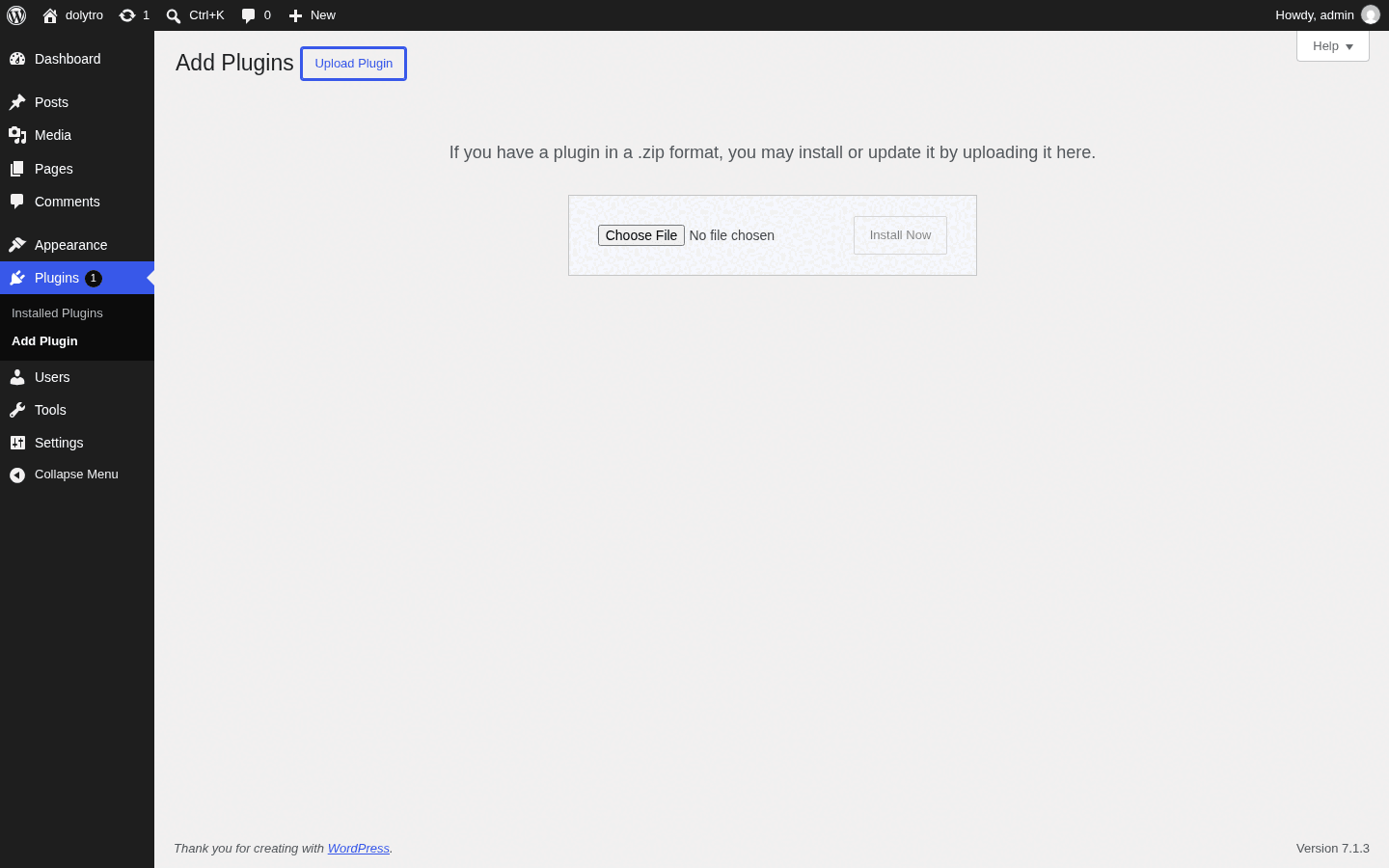
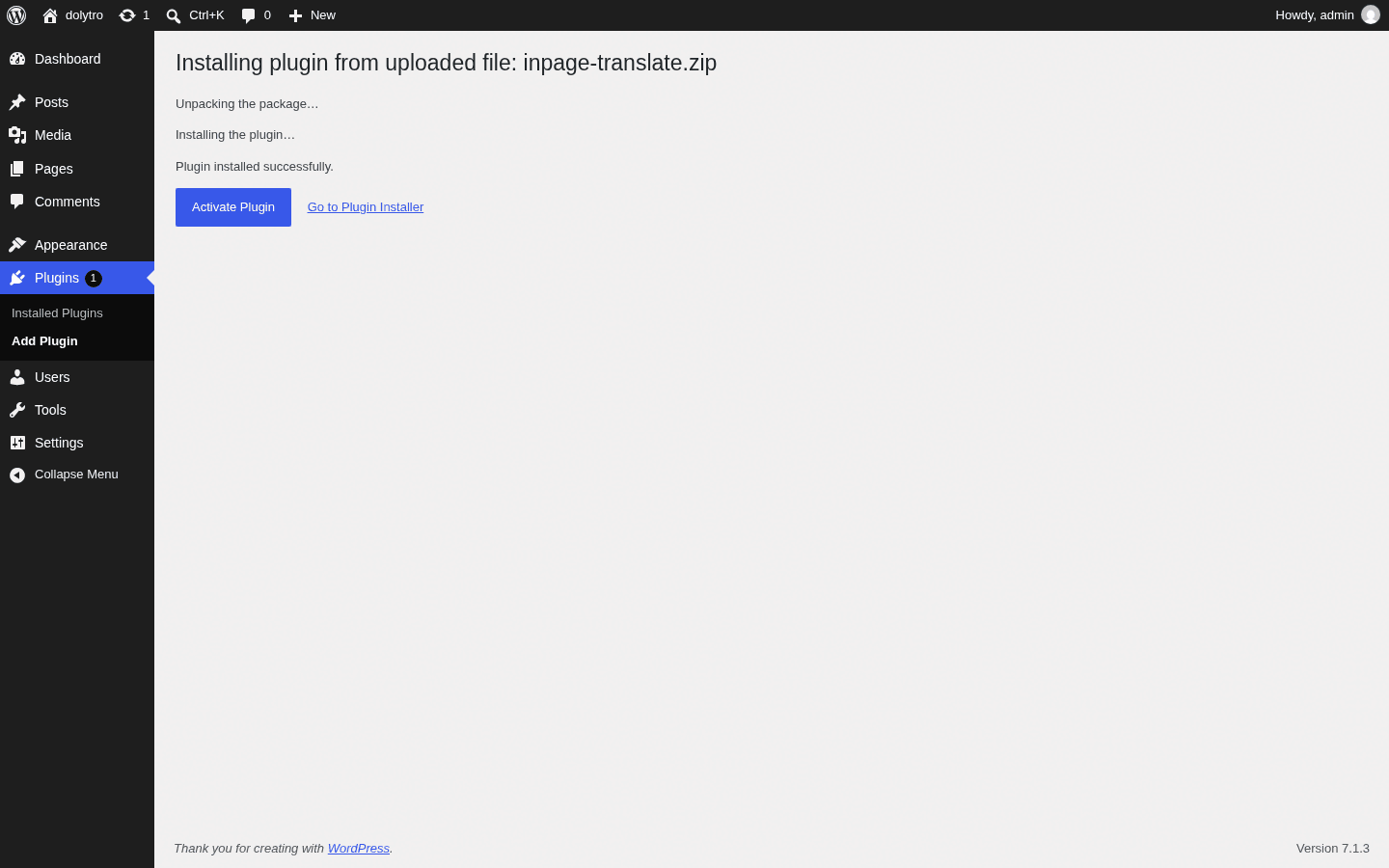
In wp-admin open Plugins, then Add New Plugin, then Upload Plugin. Choose the zip file and click Install Now.
- 3Activate it.
Click Activate Plugin.
You can also unpack the zip and copy the inpage-translate folder to wp-content/plugins/, then activate it from the Plugins screen.
What you get after activation
- An InPage Translate item in the admin toolbar, on admin pages and on your site, for people who may translate.
- An InPage Translate menu with six screens: Translations, Overview, History, Import / Export, Settings and System.
- Three database tables for your translations, their history and the list of known texts. They are created when you activate the plugin.
Use it with other translation plugins
InPage Translate does not change .po or .mo files. It works next to other translation plugins, including Loco Translate: WordPress loads the language files first, then InPage Translate replaces the texts you translated.
Remove the plugin
Deleting the plugin from the Plugins screen removes its tables and settings. Export your translations first if you want to keep them. See Import and export.
Next
Translate your first text with the Quick start.