Translate any plugin page
You do not translate "a plugin" from a list. Open the screen you want to change and translate what you see there, in wp-admin or on your site.
Open the page you want to change
Choose any plugin or theme you want to translate and go to its screen. That may be its Settings screen, a list screen, or a page on your site. Any page that shows text from a plugin or theme works, including WooCommerce, Yoast SEO, Elementor and form plugins.
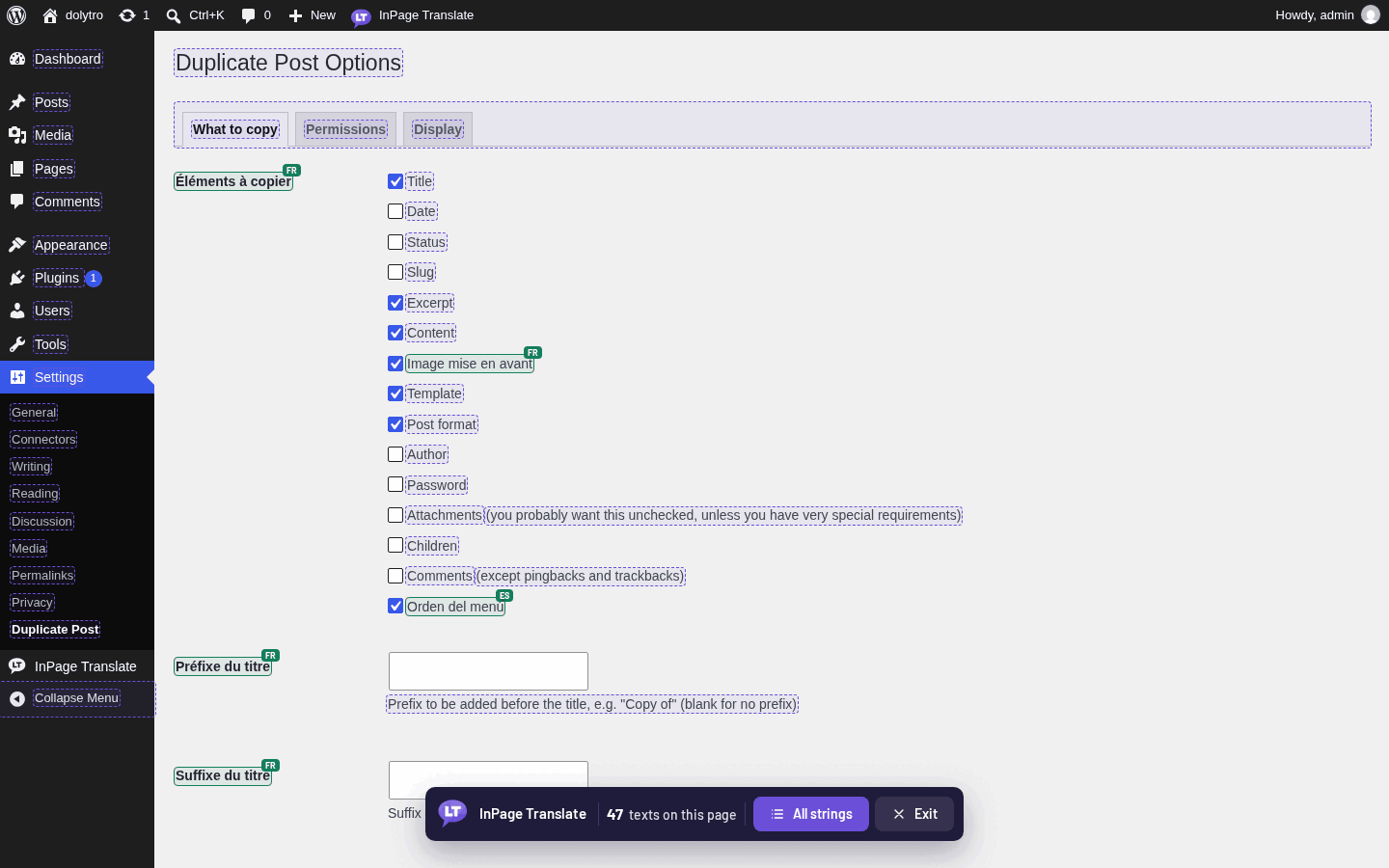
Turn on translate mode
- 1Click InPage Translate in the toolbar.
The page reloads once and every translatable text gets an outline. If the toolbar is hidden, use the floating button at the bottom left, or add
?lt_translate=1to the address. - 2Click a text.
A small editor opens next to it. Choose the language for this text, then type the translation or press Generate.
- 3Save.
The text changes on the page at once and stays after you leave. Press Exit to leave translate mode.
Different texts on one page can have different languages. Translate the button into French and the heading into Spanish if you like.
Translate the admin and the front end
Translate mode works in wp-admin and on the front end. On the front end, the buttons and labels of a shop or form plugin can be translated the same way. Visitors never see the outlines.
Translate a theme
Themes work like plugins. Open a page of your site, turn on translate mode, and click any text the theme produces, such as a button, a label or a widget title.
When a text cannot be translated
Only texts that go through WordPress translation functions are listed. Text typed straight into a template, or stored in the database (page titles, posts, menus), is not covered. For posts, pages and menus, use a multilingual plugin such as WPML or TranslatePress next to InPage Translate. See Troubleshooting.