Quick start
Install InPage Translate and translate your first WordPress plugin text on the page in about five minutes. No .po files needed.
What you need to translate a WordPress plugin
- WordPress 6.2 or newer, and PHP 7.4 or newer.
- InPage Translate installed and active. See Install and activate.
- An administrator account.
Translate a plugin text on the page
Choose any plugin or theme you want to translate. Every one works the same way, so there is nothing to set up per plugin.
- 1Open the screen.
In wp-admin, open the screen of the plugin you want to translate.
- 2Turn on translate mode.
Click InPage Translate in the toolbar at the top of the page. The page reloads once and every text that can be translated gets an outline.
- 3Click a text.
A small editor opens next to it.
- 4Choose the language and type.
Pick the language under Translate into, then type the translation. You can also press Generate for a free machine translation draft.
- 5Save.
The text changes on the page at once and stays after you leave, and after the plugin is updated.
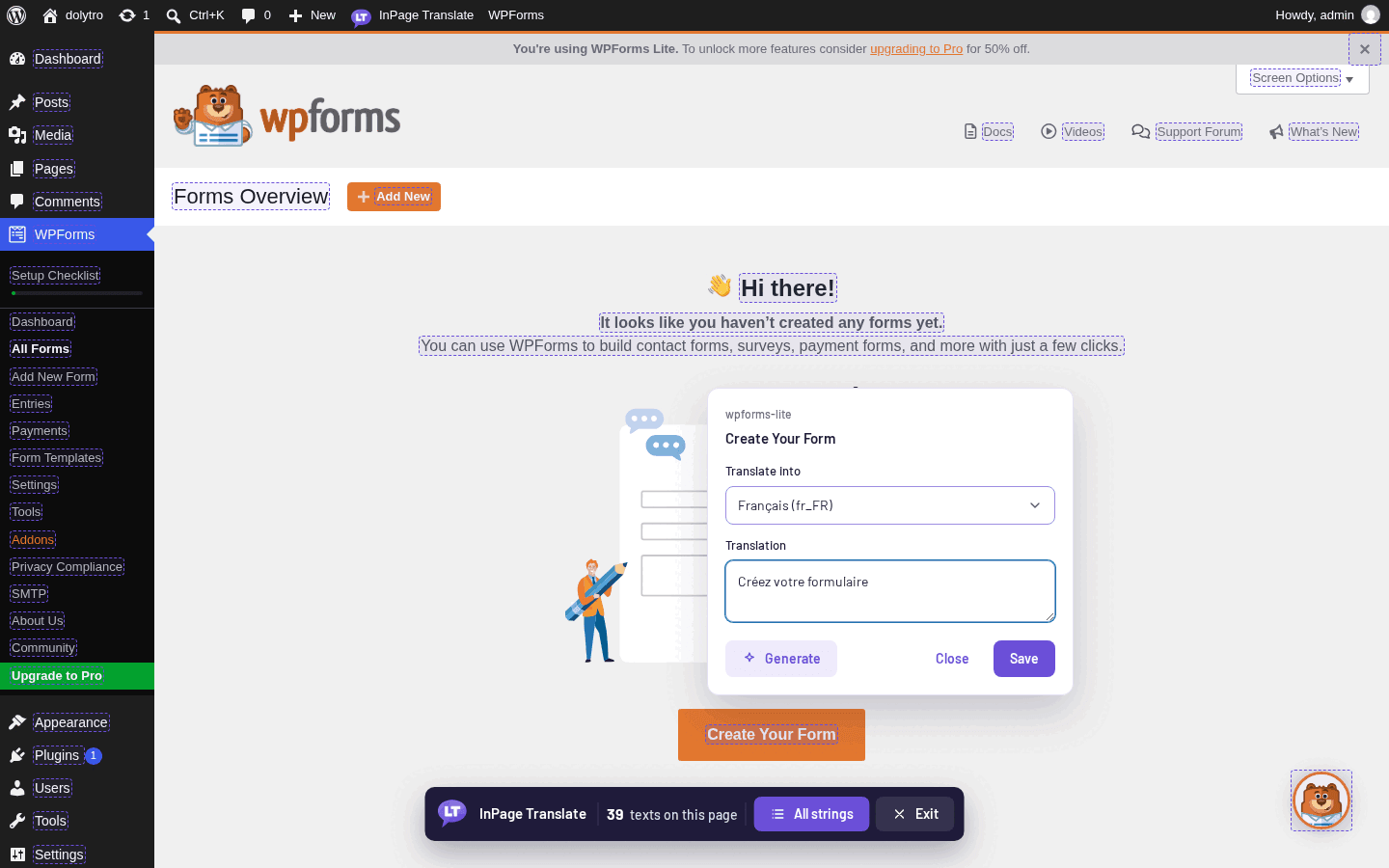
Press Exit in the bar at the bottom of the page to leave translate mode.
Check the result
Open InPage Translate in the admin menu. The Translations screen lists the text you saved, the language, and the plugin it belongs to.
If the toolbar is hidden on a page, use the floating InPage Translate button at the bottom left, or add ?lt_translate=1 to the address.
Why there are no .po files
InPage Translate saves each translation in your database and applies it as the page is built. You never edit, compile or upload a .po or .mo file. If you ever want those files, you can export them. See Import and export.
Next steps
- Your first translation explains the editor in more detail.
- Translate any plugin page covers the admin and the front end.
- How Generate works explains free machine translation.