Add a DeepL or Google key
Use your own account with DeepL, Google Cloud Translation or Microsoft Translator for better machine translation quality and limits.
Why add a translation API key
Without a key, Generate uses the free services. With a key, your own account is asked first, so you get its quality and limits instead of the shared free ones.
Add the key
- 1Open Settings.
Go to InPage Translate, then Settings.
- 2Paste the key.
Use the field for the service you have: - DeepL API key. A free key ends in
:fx. - Microsoft Translator. The key, and for most keys the region, for examplewesteurope. - Google Cloud API key. A Cloud Translation key from Google Cloud. Google requires billing for it. - 3Save the settings.
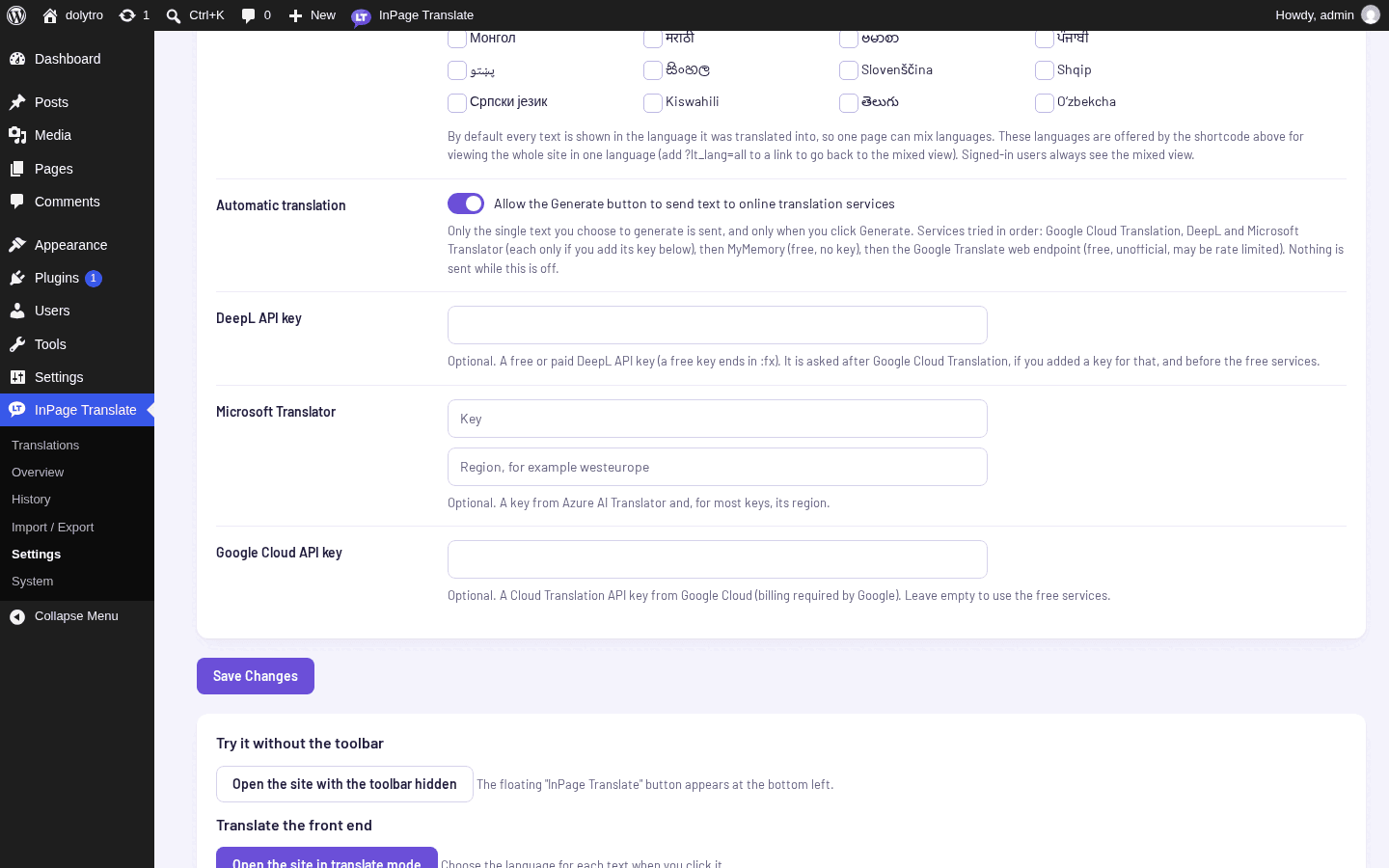
Keys are kept in your database and only used when you click Generate or Translate missing.
Test that the key works
Open any screen in translate mode, click a text and click Generate. The status line names the service that answered, so you can see which key was used. Without a key it names a free service, as below.
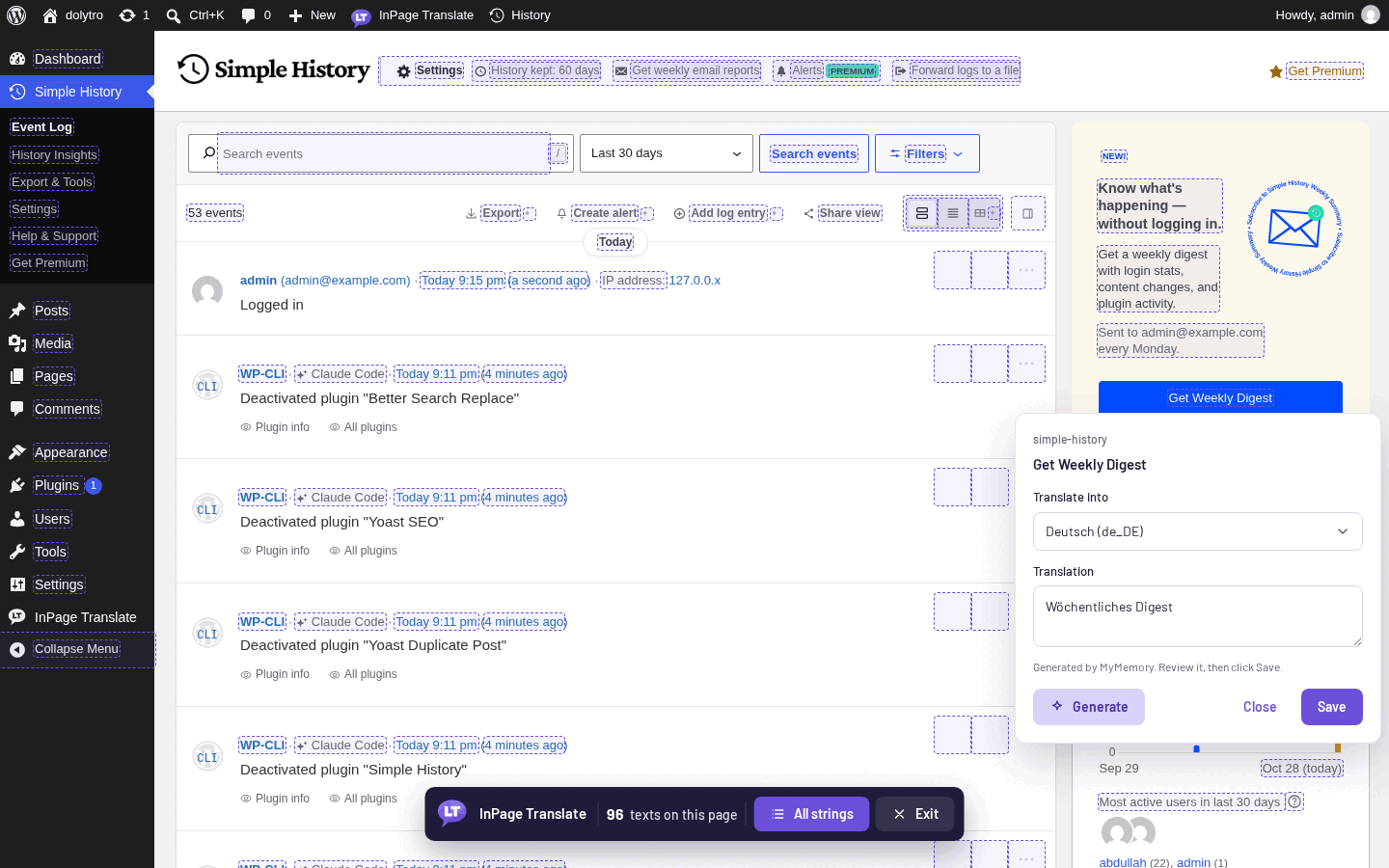
Which service is asked first
Google Cloud Translation is asked first, then DeepL, then Microsoft Translator, then the free services. A service whose key is empty is skipped. See How Generate works.
The Automatic translation switch must be on before any service is asked. The first time you click Generate, a message asks you to allow it.